Sunday, 9 September 2018

Vmware Services.

VMware services


What is vmware VPXD?
VPXD-It is Vcenter Server Service. If this service is stopped then we will not able to connect to Vcenter Server via Vsphere client. VPXA-It is the agent of Vcenter server. also known as mini vcenter server which is installed on the each esx server which is managed by Vcenter server
What is VPXA?

The vCenter Server Agent, also referred to as vpxa or the vmware-vpxa service, is what allows a vCenter Server to connect to a ESX host. Specifically, vpxa is the communication conduit to the hostd, which in turn communicates to the ESX kernel

• VPXA:-The vpxa process is the agent used to connect to VirtualCenter server. It runs as a special system user calledvpxuser. It acts as the intermediary between the hostd agent and VCenter server.

What is vCSA?
VMware vCenter Server Virtual Appliance (vCSA) features and benefits. ... It provides exactly the same functionality as the traditional Windows vCenter Server but packaged in a Linux distribution

What is Vpostgres database?
VMware vSphere Update Manager can't use the embedded vPostgres database! For VMware vSphere Update Manager you need a Microsoft SQL (Express)database. When combining the vCenter Server, PSC and VUM on one server, two different databases engines are used


How do I reset Vcenter appliance?
Log in to the vSphere Web Client with a vCenter Single Sign-on administrator account. Navigate to Administration > Deployment > System Configuration. Click Nodes, select the vCenter Server Appliance node and click the Related Objects tab. Right-click on the service you want to restart and select Restart.


How does Vcenter communicate with each ESXI server?
vSphere Client can communicate with both a vCenter Server instance and anESXi host. Access to the ESXi host is provided by a vCenter Server agent named vpxa. The vpxa process is started on the ESXi host when it is added to the vCenter Server inventory. vpxa communicates with the ESXi host agent named hostd
 HOSTD:- It is the process that authenticates users and keeps track of which users and groups have which privileges. It also allows you to create and manage local usersThe HOSTD process provides a programmatic interface to VMkernel and is used by direct VI Client connections as well as the VI API.


What is the difference between VPXA, VPXD, HOSTD?
Hostd is demon or service runs in every ESXi host and performs major tasks like, VM power on, local user management etc. But when ESXi host joins in a vCenter server Vpxa agent gets activated and talk to Vpxd service which runs in vCenter server. So the conclusion is Vpxd talks to Vpxa and Vpxa talks to hostd, this is how Vpxd (vCenter demon) talks to hostd demon via Vpxa agents.


What is the difference between ESXI and ESX?
It's been a long debate that everyone has been asked by what is the difference between ESX and ESXi. ... ESX (Elastic Sky X) is the VMware's enterprise server virtualization platform. In ESX, VMkernel is the virtualization kernel which is managed by a console operating system which is also called as Service console


What initial tasks can be done by DCUI-
• Set administrative password
• Configure networking
• Perform simple network tests
• View logs
• Restart agents
• Restore defaults

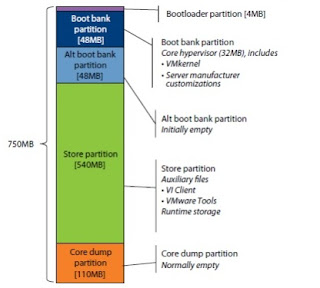
Describe VMware System Image Design-


The ESXi system has two independent banks of memory, each of which stores a full system image, as a fail-safe for applying updates. When you upgrade the system, the new version is loaded into the inactive bank of memory, and the system is set to use the updated bank when it reboots. If any problem is detected during the boot process, the system automatically boots from the previously used bank of memory. You can also intervene manually at boot time to choose which image to use for that boot, so you can back out of an update if necessary.
At any given time, there are typically two versions of VI Client and two versions of VMware Tools in the store partition.


What is vnic, vmnic and vmk.

Vmware default policy.

:STN
1:Security.
Promoscuous mode
Mac address changes .
Frogged transmit.

2: Traffic shaping 

Average bandwidth.
Peak bandwidth.
Burst size.

3:Teaming failover and loadbalancing

1.Load balancing 
2.Network failer detection.
3.Notify switches.
4.Failback.
5.Active adaptors.

Wednesday, 11 April 2018

How Storage VMotion Works


How Storage VMotion Works.


So how storage VMotion works?


How does SVMotion works at background and what are the process that is happening at the backend.

Storage VMotion is really a great feature which enables you to migrate your VM’s storage or Virtual disks from one datastore to another datastore without any downtime and yes now started from vSphere 5.5  using web client, you can do both VMotion and SVMotion of powered ON virtual machines simultaneously which was not possible earlier.
So when you do SVMotion, all the non-volatile files that make up a VM is been copied first to the destination datastore i.e. .VMX, swp, snapshots and log files.So how storage VMotion works?
  • It starts a shadow VM on the destination datastore, as shadow VM doesn’t have virtual disks, it sits idle waiting for its virtual disks.
  • VMKernel datamover starts the initial copy of migration from source datastore to destination datastore. Than Mirror driver kicks in that mirror’s I/O between source to destination.
  • As I/O mirroring is in place, vSphere makes a single pass copy of virtual disks from source to destination datastore. And the changes made in between this process are been properly taken care by mirror driver by ensuring all the changes are been reflected on destination datastore also.
  • Once the virtual disk copy gets completed, vSphere quickly suspends and resumes in order transferring control to the shadow VM on the datastore.
  • Once it is confirmed that VM is working properly on the destination datastore, the files on the source datastore gets deleted.

What are the benefits of SVMotion?
  • Using storage VMotion, you can balance utilization on datastores.
  • SVMotion doesn’t require any downtime, so this becomes very helpful during storage upgradation or during any activity on storage side.
  • Using SVMotion you can convert thick disk to thin disk and vice versa.
  • Dynamically optimize storage I/O performance.


VMotion and Storage VMotion allow for the business’ priorities to be met without disrupting the workflow of the users.
Storage VMotion makes storage and capacity management more efficient. It is a feature of vSphere that delivers an easy, intuitive interface to allow the live migration of VM disk files across storage arrays, while causing no downtime and no interruption or heavy deterioration of the performance of the VMs. It works by relocating the VM disk files to various storage locations, enabling the business to be proactive about storage migration and to improve the performance of storage in terms of capacity management.

Like vMotion, Storage VMotion is completely integrated with vCenter Server, which allows for the easiest possible migration and monitoring.Storage VMotion works with any OS and storage hardware that is supported by ESXi. It enables administrators to take advantage of a mixture of heterogeneous file formats and data stores, without incurring any downtime.

With Storage VMotion, administrators can migrate VM disk files to alternate LUNs in order to optimize performance with no downtime. It allows administrators to increase or decrease storage allotment, without a lot of manual work. Additionally, Storage VMotion can act as a tool to tier the storage, based on the value of the data, performance requirements, and the cost of various storage solutions.

If you’re in the market for a better VMware monitoring solution, Opvizor has your answer. Snapwatcher enables VMware snapshot monitoring and reporting so that you can track invalid snapshots that can happen when migrating virtual machines. Register for Snapwatcher here, to detect and solve all kinds of bad Snapshots.

Tuesday, 10 April 2018

Differentiate between Virtual Machine Port Group and VMKernal Port?


Differentiate between Virtual Machine Port Group and VMKernal Port?


VMkernel ports 

VMkernel ports are used to connect the VMkernel to services that it controls. There can be many vmkernel ports however there is only one vmkernel.
Hence the vmkernel ports can be differentiated based on the service it connects the vmkernel to.
The services might be vmotion,SCSI binding,Management of the ESXi or Fault tolerant. With vSphere 5.5 there is addition of this for vSAN Network.

VM port Groups

VM port Groups on the other hand are used only to connect Virtual machines to Virtual Switches.
Primarily these can be layer 2 Switches which only need a tagging such as vLAN tagging to make sure that the Virtual machines communicate in between themselves,communicate in between the hosts,communicate to the internet etc.
With VM Port groups, you can have policies such as Security,Traffic Shaping,NIC Teaming etc.


VmKernel port group provides connectivity to hosts and handles the traffic like vMotion , management, FT traffic. We assign IP address to Virtual kernel Adapter (VMK) of VMKernel port group. Whereas all Virtual machines are connected at VM port group.


Security
Set MAC address changes, forged transmits, and promiscuous mode for the selected port groups.
Traffic Shaping
Set the average bandwidth, peak bandwidth, and burst size for inbound and outband traffic on the selected port groups.
VLAN
Configure how the selected port groups connect to physical VLANs.
Teaming and Failover
Set load balancing, failover detection, switch notification, and failover order for the selected port groups.
Resource Allocation
Set network resource pool association for the selected port groups. This option is available for vSphere distributed switch versions 5.0.0 and later only.
Monitoring
Enable or disable NetFlow on the selected port groups. This option is available for vSphere distributed switch versions 5.0.0 and later only.
Miscellaneous
Enable or disable port blocking on the selected port groups.


What is vnic, vmnic and vmk

NIC Teaming

NIC Teaming 


Load Balancing Mode

1: Address Hash
2: Hyper-V Port
3: Dynamic (Windows server 2012 R2 Only)

Teaming Mode

1: Switch Independent
2: Static Teaming
3: LACP


Windows can support up to 32 network card adaptor in the one nic team
and the load balancing more ditermines how traffice will be distributed between the network cards in the nic team
when it leaves the server. there are 3 load balancing mode that are supported. Each of the we will go in mre details

The first is adddress hash. This mode essentially uses attributes of the network traffice, like IP Address and Port
- To determies which network adaprot will be used. given the same input values the same network adaptor will always be used
if you are using virtual machines

The seconnd setting - Hyper-V sswitches port- can be  used and can control incomming and outgoing traffice.
it dies this by routing each virtual machines through tge same network adaprot each times.

The Third setting Dynamic, this is a new setting that was added in windows server 2012R2
This setting combines the features of the previous two balancing options and can change network streams from thr netowrk card to another as required.


Teaming mode :-
Some netowrk switches have support for the load balancing. if your network switches does not have that ability or you do not want to use it,
the mode, switches independent, should be used. This mode doesnot require any hardware support ont he switch.

Next two mode are static teaming and LACP. Both these modes require your network switches to support the required load balancing protocol. if youa re prepared to configure
your network switches. these options allow better utilization of your netowrk card.

I will now have a closer look at these settings, starting with the load balancing opetions followed by the teaming mode options.

Address Hash
Uses MAC/IP Address/ Poer to create hash

Wednesday, 4 April 2018

How VMotion Migration works?


Let's explore how VMotion migration works!


As we see our virtual machine is currently running on host 1 if we want to migrate that VM to host two using VMotion migration.


There are several requirements that we first need to meet as you can see between two host,
we need to have shared storage. the virtual machine files need to be stored in that shared storage and as a result of having shared storage the migration are actually very very quick because we need not copy any of the files,
well we actually need to be copy from the first host to the second host is the memory state of the virtual machine and that's performed across the network that we called VMotion network.
The VMotion network which we'll show you later during the segment is a private non routed, gigabit or faster network connection between the two hosts involved in the VMotion migration, now the virtual machine, on the other hand, see other networks such as
the network we have illustrated here the production network one of the requirements of the VMotion migration is that the host have the VMotion network but additionally, the
host need to have identical network configurations including identically spelled labels for the virtual machine port groups for a network such as the production network, so if the virtual machine port is called production with a capital P on the first host then the same virtual machine port group must have the exact same label on the second host it much be spelled production but with the capital P but with these pieces setup we can migrate the virtual machine from the host 1 to host 2 the way this is performed is that the host performs a bulk copy of the memory state of the virtual machine A from the first host to the second host across.
the VMotion network, while we perform that copy the challenge is that the memory location that were copying and changing, so what ends up happening if that initial bulk
copy is the VM is actually quest but the quiescing that the actual stopping of the VM is so quick that we as human don't perceive, during that period of quiescence,
the changes that occurred in the memory state are copied from the first host to the second host the VM is then unquestioned at that point VMS now on the second host,
the VM still at the same IP Address same mac address same hostname in fact from the outside world perspective nothings changed in that virtual machines expect
for one thing that virtual machine is now connected to a host which is plugged into a different physical port on the physical switch,
To address that issue we simply perform reverse ARP Broadcast and that act and the all other test we perform performed automatically for you behind the scenes the end result is you suddenly see the VM that was running on ESXi host 01 running on the second host

Monday, 17 April 2017

Configure Hosts for vMotion and Migrate Powered-On Virtual Machines

This scenario demonstrates how to configure vCenter Server and ESX/ESXi hosts so that you can migrate powered-on virtual machines without downtime. vMotion is a prerequisite for advanced vSphere features such as vSphere Distributed Resource Scheduler (DRS) and vSphere High Availability (HA).

Verify that you have at least two ESXi hosts that are licensed for vMotion or are in evaluation mode.
Verify that you have running instances of vCenter Server and the vSphere Web Client.
Verify that hosts have access to shared storage of a supported type, such as Fibre Channel, iSCSI, or NAS.
Verify that the source and destination hosts have compatible CPUs.
Verify that hosts have access to the same physical networks.
Verify that you have at least one active Gigabit Ethernet adapter on each host.
Virtual machine files must be on shared storage visible by the hosts.
Virtual machines must run a supported operating system.
Virtual machines must not have a connection to a virtual media device with a mounted local image.
Virtual machines must not have a connection to an internal vSwitch that is not connected to a physical network.
Virtual machines must have access to the same subnets.
Virtual machines must not have CPU affinity configured.
1
Create a Datacenter and a Cluster
To begin with the vMotion example scenario, prepare an EVC-enabled virtual environment for the hosts that you are configuring for vMotion. 
vSphere environments are typically organized into datacenters and clusters. 
Using vSphere EVC clusters reduces the risk of incompatible host CPUs that might prevent vMotion migrations.
2
Add Hosts to the EVC-Enabled Cluster
Add the hosts ESXi-A and ESXi-B to your vSphere inventory. Place them in the cluster My EVC Cluster to ensure CPU compatibility between hosts.
3
Configure vMotion Networking on the Source and Destination Hosts
vMotion migrations use a dedicated network to transfer the virtual machine state between the source and destination hosts. 
You must configure such a network for each host that you will use for vMotion migrations.
4
Install VMware Tools
After you have set up an environment with two hosts and configured vMotion networking, 
ensure that the virtual machines meet the requirements for vMotion. 
Install VMware Tools to ensure better virtual machine performance.
5
Migrate Powered-On Virtual Machines by Using vMotion
After you configure your vSphere environment for vMotion, you can use the vSphere Web Client to migrate powered-on virtual machines between the hosts ESXi-A and ESXi-B
In a production environment, vMotion guarantees minimal downtime of critical tasks that run in virtual machines.